JOV Cleaner
Get disk space back without deleting the wrong thing
JOV Cleaner removes cache files that apps rebuild on their own, and only the kinds it has a checked rule for. You see the list before anything is removed.
Your download has started. The install steps are below.
JOV Cleaner is a Mac app. Open this page on your Mac to download it.
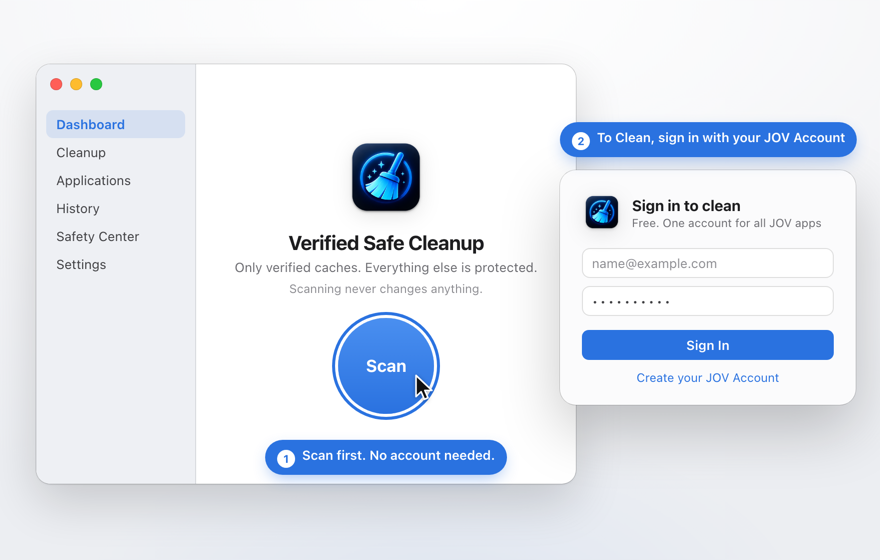
A scan lists the caches JOV Cleaner has a rule for. Clean removes the ticked ones, and your own folders are never part of it.
You see the list before anything is removed
A scan only reads. You get the list and the space it would free, and nothing is removed until you click Clean.
Each file is checked again right before it’s removed, and the History page keeps a record of every cleanup.
The dashboard reads the Mac, counts what is safe to clean, and shows the list first. Nothing is removed until you click Clean.
Clear app caches that apps rebuild on their own
Caches are the files apps keep to load faster and recreate when they’re gone. Each kind has a rule we’ve reviewed, and anything that doesn’t match a rule stays where it is.
Find large files and duplicates, and uninstall apps with their leftover files
Find large files, old installers and duplicate copies (one copy always stays). Uninstall an app together with the files it left in your Library, and see what starts when you log in.
Duplicates are found, one copy stays, and the other copies are moved to the Trash, where you can put them back.
A cleanup never touches your own files
A cleanup leaves alone your Documents, Desktop, Downloads, Photos, Mail and Messages, iCloud Drive, keychains, source code and project folders, and anything outside your home folder.
Large Files, Duplicates and the uninstaller only move what you pick to the Trash.
Scans happen on your Mac
Scans and cleanups happen on your Mac, and no file names or file contents are sent anywhere.
Price
JOV Cleaner is free. You can scan and look through the results without an account. To clean, you sign in with a free JOV Account, the same one for all JOV apps.
Install it in about a minute
macOS asks you to allow the app the first time you open it. You only do that once.
-
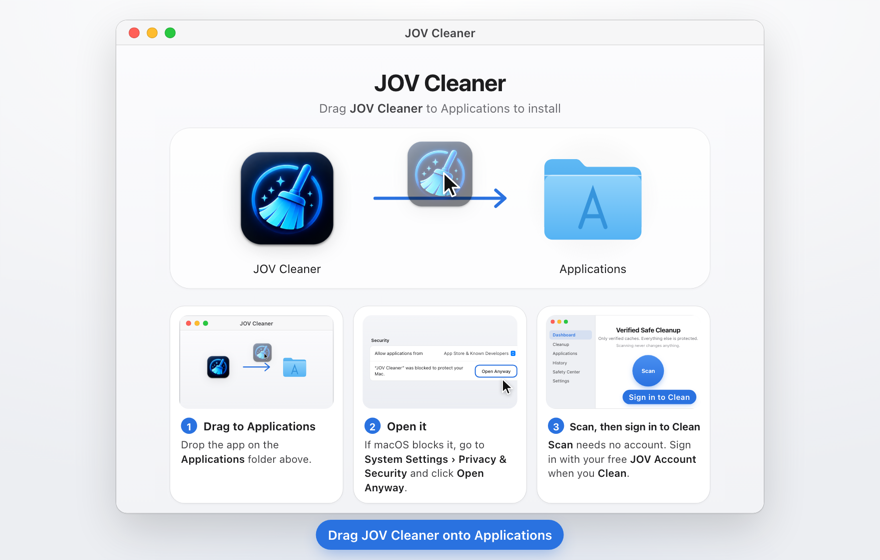
1. Open the file you downloaded and drag JOV Cleaner to Applications.
-
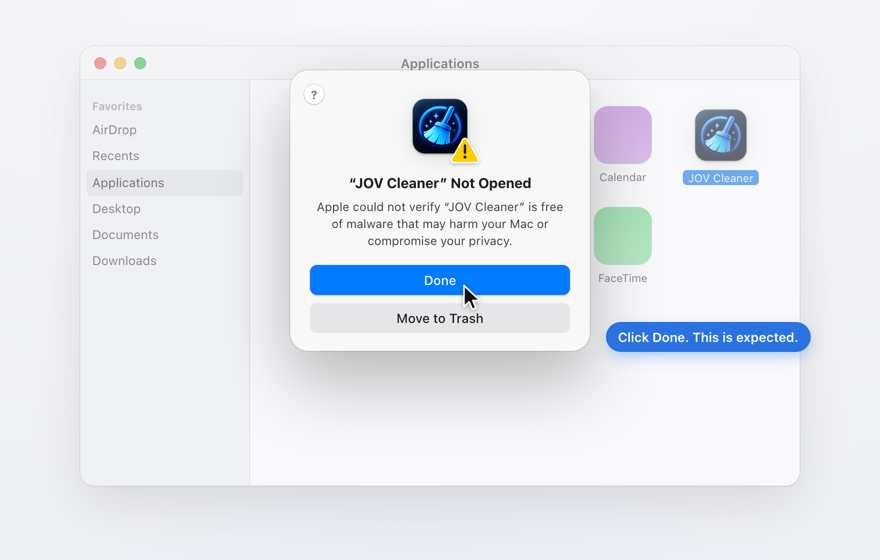
2. Open JOV Cleaner. macOS says it can’t check the app: click Done.
-
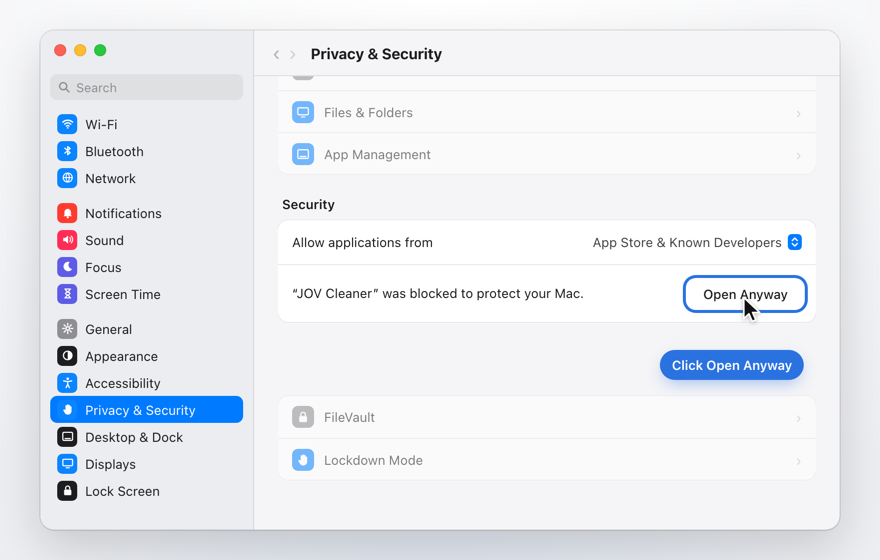
3. In System Settings, open Privacy & Security and click Open Anyway.
-
4. JOV Cleaner opens. From now on it opens like any other app.


On macOS 14 Sonoma you can skip step 3: Control-click JOV Cleaner in Applications and choose Open.
Is it free?
Yes. JOV Cleaner is free. Scanning needs no account, and cleaning needs a free JOV Account.
What does it delete?
Only cache files that match one of its reviewed rules, and only the ones still ticked when you click Clean. It never removes documents, photos, mail, messages, passwords and keychains, browser history and cookies, cloud folders, Git repositories or app settings.
Can I undo a cleanup?
No. Cache files are deleted, not moved to the Trash, and apps rebuild them when they need them. Files you choose in Large Files or Duplicates, and apps you uninstall, go to the Trash, so you can put them back from there until you empty it.
Do I need an account?
Not to scan or look through the results. To clean, sign in with a free JOV Account. It’s the same account for all JOV apps.
Does it upload my files?
No. Scans and cleanups happen on your Mac, and no file names or file contents are sent anywhere. The app sends an anonymous install count and, only if you agree, crash reports.
Can it clean on a schedule?
Yes, if you turn it on in Settings. Scheduled cleanups only remove caches that are safe to clear while you’re away, and only while their apps are closed.
More QuestionsFewer Questions
Will it warn me when my disk is nearly full?
Yes. It tells you when free space drops below 10 GB or 5% of the disk, whichever is smaller.
Which Macs and macOS versions does it need?
Any Mac with macOS 14 Sonoma or later.
Does it run on Intel or Apple silicon?
Both. Since version 1.5.0 it runs natively on Macs with Apple silicon and on Macs with an Intel processor.
Why does macOS say it can’t check the app?
We distribute JOV apps from this website rather than the App Store, and macOS shows that message the first time you open an app from outside the App Store. Click Done, then open System Settings, go to Privacy & Security and click Open Anyway. On macOS 14 Sonoma you can instead Control-click the app in Applications and choose Open. You only do it once.
Guide What is safe to delete to free up space on a Mac All Guides