JOV Control
Use your iPad as a control pad for your Mac
Take screenshots, change the volume, switch apps and run your own workflows from an iPad, a phone or any browser on the same Wi-Fi. An old iPad works fine.
Your download has started. The install steps are below.
Install JOV Control on your Mac first. Open this page on your Mac to download it, and your phone can be the pad afterwards.
The pad pairs once with a code, then each tap changes the sound, the music, a screenshot, the front app or runs a workflow on the Mac. Lock asks first.
Screenshots, sound, media and apps from the pad
Take screenshots of the screen, a window or an area, and record the screen. Change the volume and output, use the media keys, and open, hide or quit apps.
Run workflows, which are several actions in a row, and send saved snippets of text to the Mac’s clipboard.
Each tap on the pad acts on the Mac: the volume, the music, a screenshot, the brightness.
The pad is a web page on your own Wi-Fi
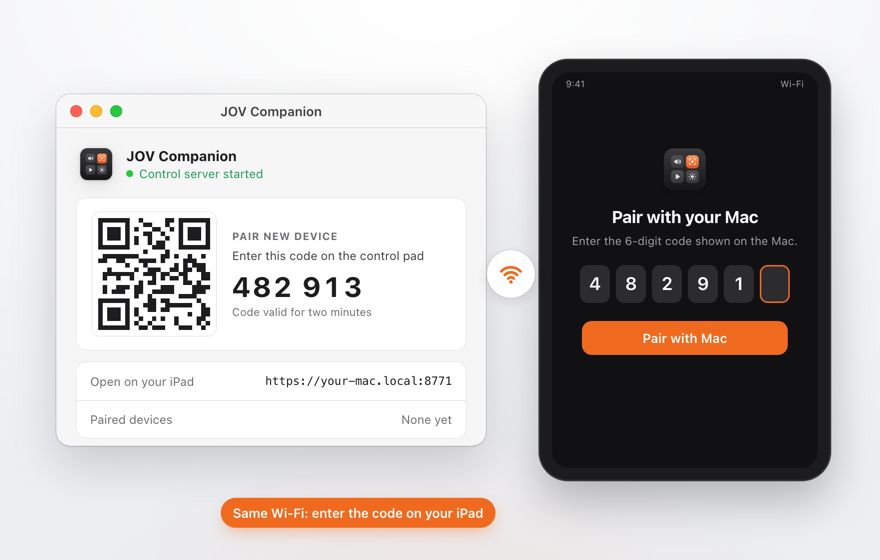
JOV Companion sits in your Mac’s menu bar. The pad is a web page: open it on another device on your Wi-Fi, type the 6-digit code shown on the Mac once, and they’re paired.
The two talk to each other directly over your network. Nothing goes through a server of ours.
Choose the controls and arrange them
Pick from 57 controls, arrange them and give them icons and colours. Keep separate profiles for work, meetings or watching something.
It asks before it locks, sleeps or runs a script
Lock and sleep always ask first. Scripts only run after you approve them on the Mac, and typing into apps stays off until you turn it on.
It stays on your network
Screenshots and recordings are saved on your Mac, and what you do on the pad stays on your network.
Price
JOV Control is free. To start it on your Mac you sign in with a free JOV Account, the same one for all JOV apps.
Install it in about a minute
macOS asks you to allow the app the first time you open it. You only do that once.
-
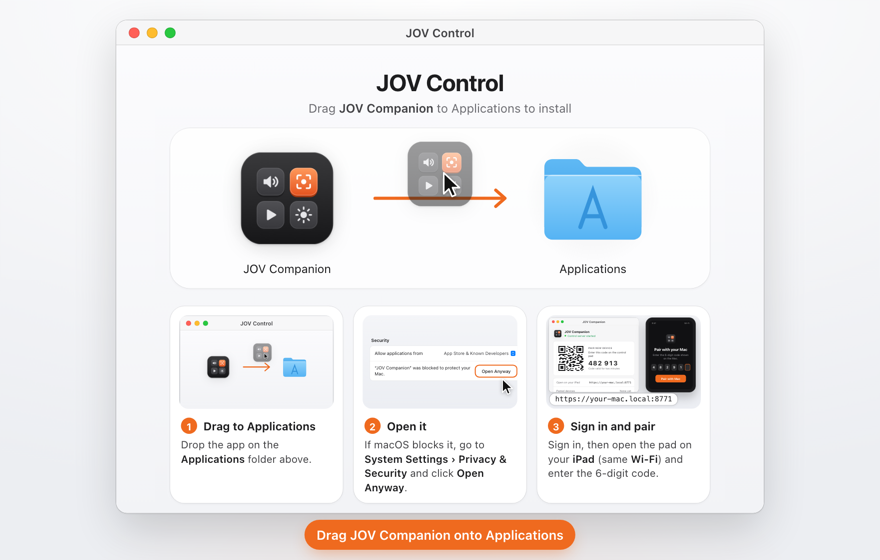
1. Open the file you downloaded and drag JOV Companion to Applications.
-
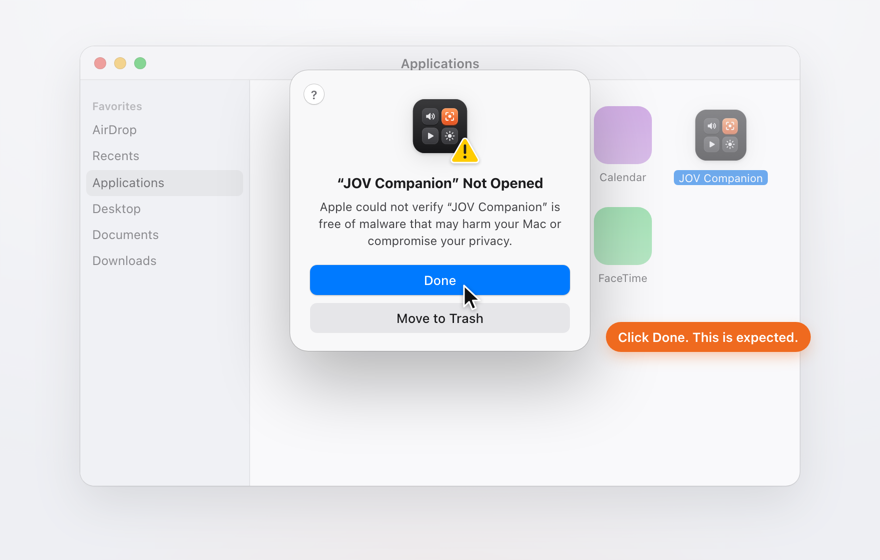
2. Open JOV Companion. macOS says it can’t check the app: click Done.
-
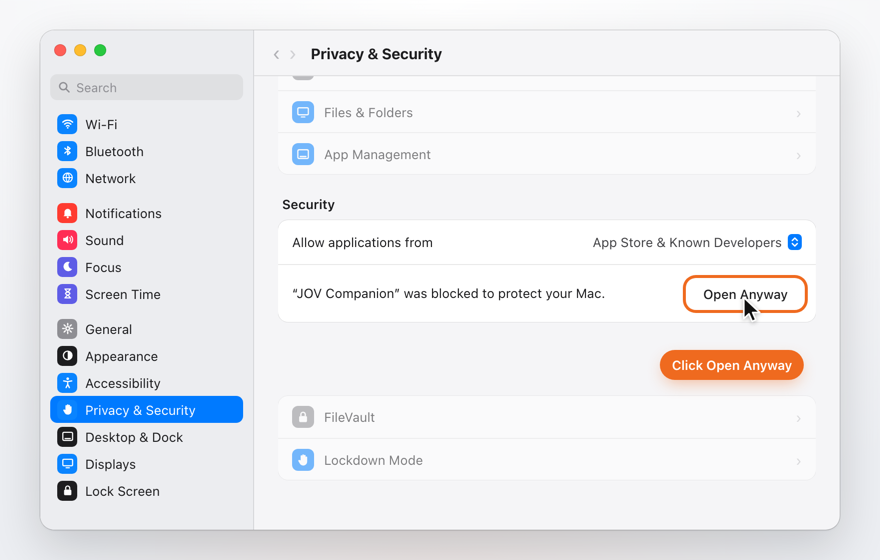
3. In System Settings, open Privacy & Security and click Open Anyway.
-
4. JOV Companion opens. From now on it opens like any other app.


On macOS 13 or 14 you can skip step 3: Control-click JOV Companion in Applications and choose Open.
Is it free?
Yes. JOV Control is free. You need a free JOV Account to start it on your Mac.
What do I need?
A Mac with macOS 13 or later, and a phone, tablet or computer with a web browser on the same Wi-Fi.
Do the pad and the Mac need to be on the same Wi-Fi?
Yes. The pad reaches JOV Companion over your local network, so both have to be on the same Wi-Fi network. The connection is encrypted with HTTPS and doesn’t go through the internet or a server of ours.
Does it upload my files?
No. Screenshots and recordings are saved on your Mac, and what you do on the pad stays on your network. The Mac app sends an anonymous install count and, only if you agree, crash reports.
Do I need an account?
Yes, a free JOV Account, to start the control server on your Mac. It’s the same account for all JOV apps.
Does it run on Intel or Apple silicon?
Both. JOV Companion is one app that runs natively on Macs with Apple silicon and on Macs with an Intel processor.
Why does macOS say it can’t check the app?
We distribute JOV apps from this website rather than the App Store, and macOS shows that message the first time you open an app from outside the App Store. Click Done, then open System Settings, go to Privacy & Security and click Open Anyway. On macOS 13 or 14 you can instead Control-click the app in Applications and choose Open. You only do it once.